
The Site Surveys module keeps all onsite discovery information organized in one place. It helps your team record customer details, collect photos, document infrastructure, and hand off clean information for quoting. Everything is easy to search, easy to update, and designed for smooth field-to-quote transitions.
Site Survey Search
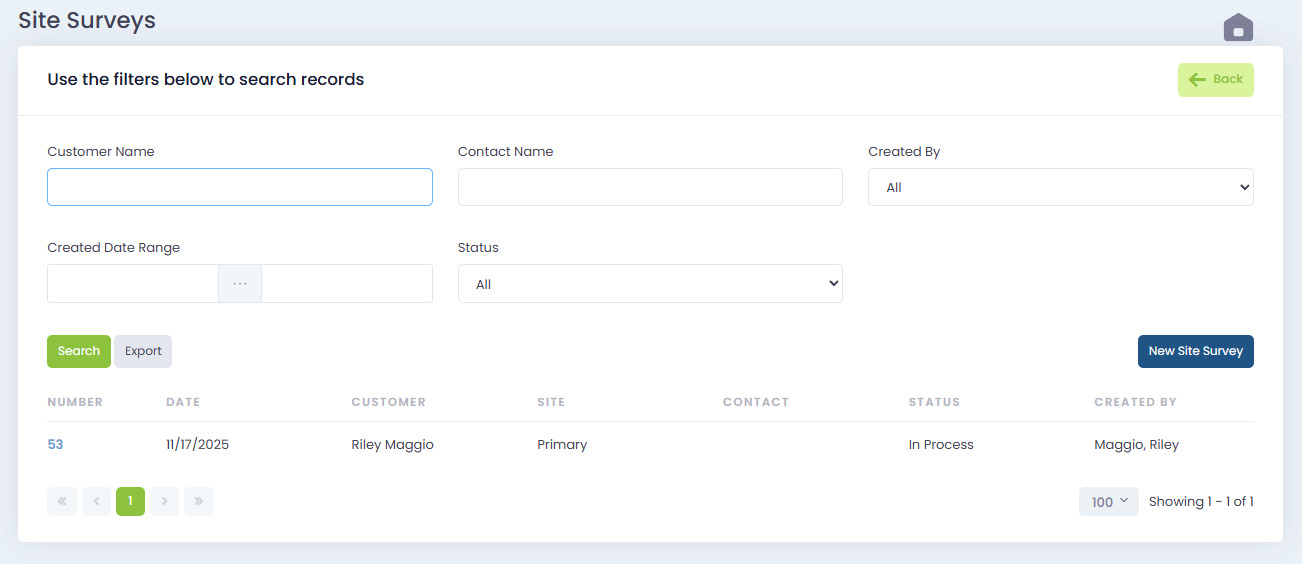
When you open Site Surveys, you’ll see the search page. You can filter surveys by:
- Customer Name
- Contact Name
- Created By
- Created Date Range
- Status (All, In Process, Closed, etc.)
Buttons available:
- Search — Updates your results
- Export — Downloads your filtered list
- New Site Survey — Starts a new survey
Below the filters is the table showing:
- Survey Number
- Date
- Customer
- Site
- Contact
- Status
- Created By
Site Survey Details
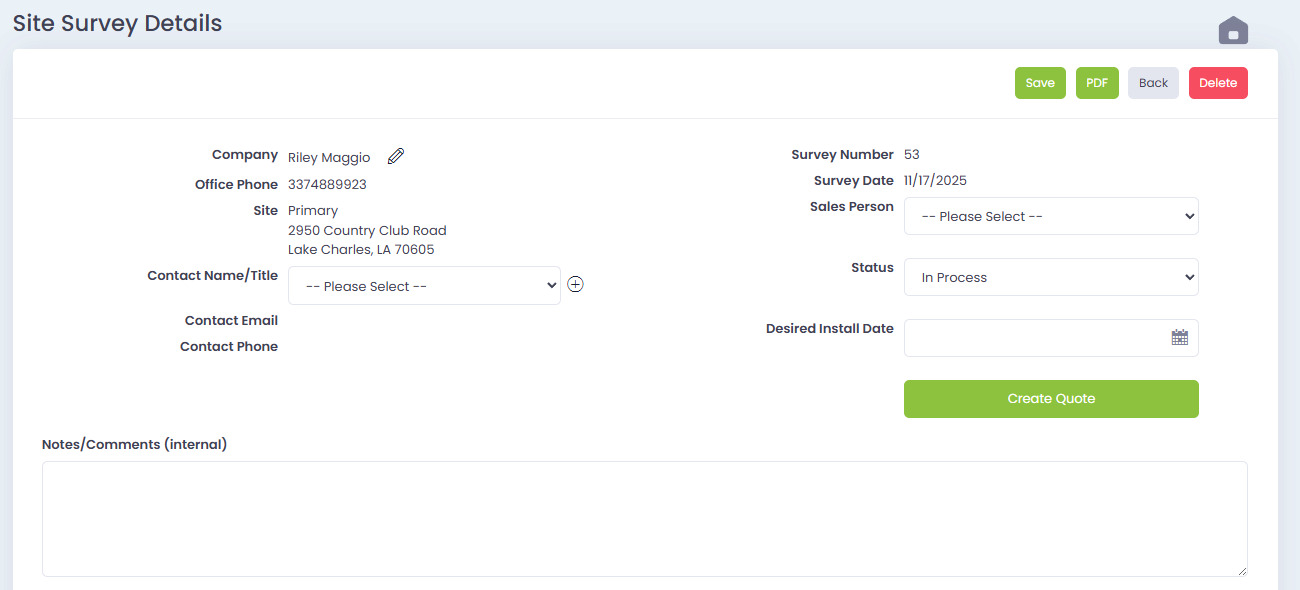
Selecting a survey from the list opens the Site Survey Details page.
This is where most of your data entry happens. The layout keeps everything organized by section.
Top Section Includes:
- Company
- Office Phone
- Site (Address)
- Contact Name/Title
- Contact Email & Phone
- Survey Number
- Survey Date
- Sales Person
- Status
- Desired Install Date
- Buttons: Save, PDF, Back, Delete
- Create Quote — builds a quote directly from the survey
This lets your sales team instantly turn discovery into a proposal.
Notes & File Attachments
Below the main details you’ll find:
Notes / Comments (Internal)
- Used for technician notes, network observations, project comments, or anything not customer-facing.
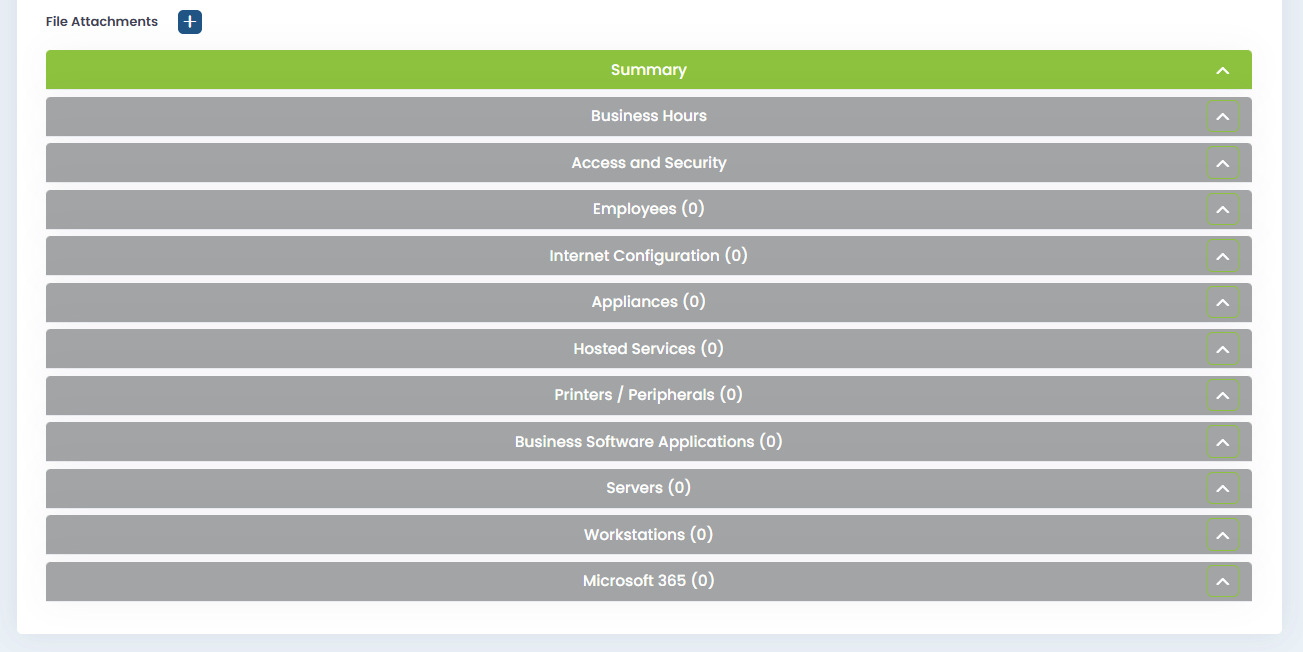
File Attachments
- Upload images, site photos, diagrams, or documents.
- Each file has a remove icon for cleanup.
- The “+” lets you add more attachments.
Summary Section
A quick overview of key device counts:
- Total Employees
- Total Laptops
- Total Color Lasers
- Total Servers
- Total Routers
- Total Standard Licenses
- Total Switches
- 24 Hr Support toggle
This gives your team a fast snapshot of the environment.
Business Hours
This section records the operating schedule of the business:
- Day(s)
- Open Time
- Lunch Break
- Close Time
- Notes
You can add additional days using the “+” button.
Access and Security
Covers building access info:
- After-hours availability
- Access instructions
- Additional notes
Useful for scheduling future onsite visits.
Employees
This section stores employee names tied to the site:
- Name
- Role
- Username (if applicable)
- Edit button for updates
- “+” to add additional employees
Internet Configuration
Used to record onsite ISP details:
- Connection Type
- Provider
- Upload / Download speeds
- Replace? field
Appliances
This section logs network hardware:
- Type (router, switch, etc.)
- Make
- Model
- Ports
- Replace? field
Editors can update each line with the pencil icon.
Hosted Services
Includes hosted applications, domains, or external services:
- Service Type
- Domain
- Host / URL
Printers / Peripherals
Tracked by:
- Type
- Make
- Model
- Color
- Replace?
Business Software Applications
Contains business apps used on-site:
- Name
- Provider
- Contact Info
- Replace?
Servers & Workstations
Servers
If none exist, the section shows “(0)”
Servers can be added via the “+”.
Workstations
Tracks all computers on site:
- Type
- Employee/Role
- Computer Name
- Assigned?
- Replace?
- OS
- Monitor size & quantity
Microsoft 365
Stores licensing:
- License Type
- Qty
- Notes
- Associated emails or accounts
How Site Surveys Work With Quotes
Once a survey is filled out:
- The Create Quote button pulls all relevant data into a new quote.
- Attachments and notes help the quoting team build accurate proposals.
- Surveys stay stored for reference and future upgrades.
This keeps your field discovery and quoting workflow simple and efficient.