
The Prospects module is your main workspace for tracking leads, logging outreach, updating next steps, and importing large prospect lists. This page keeps your call list organized and gives you everything you need to follow up, nurture leads, and move prospects toward your pipeline.
Prospect Search
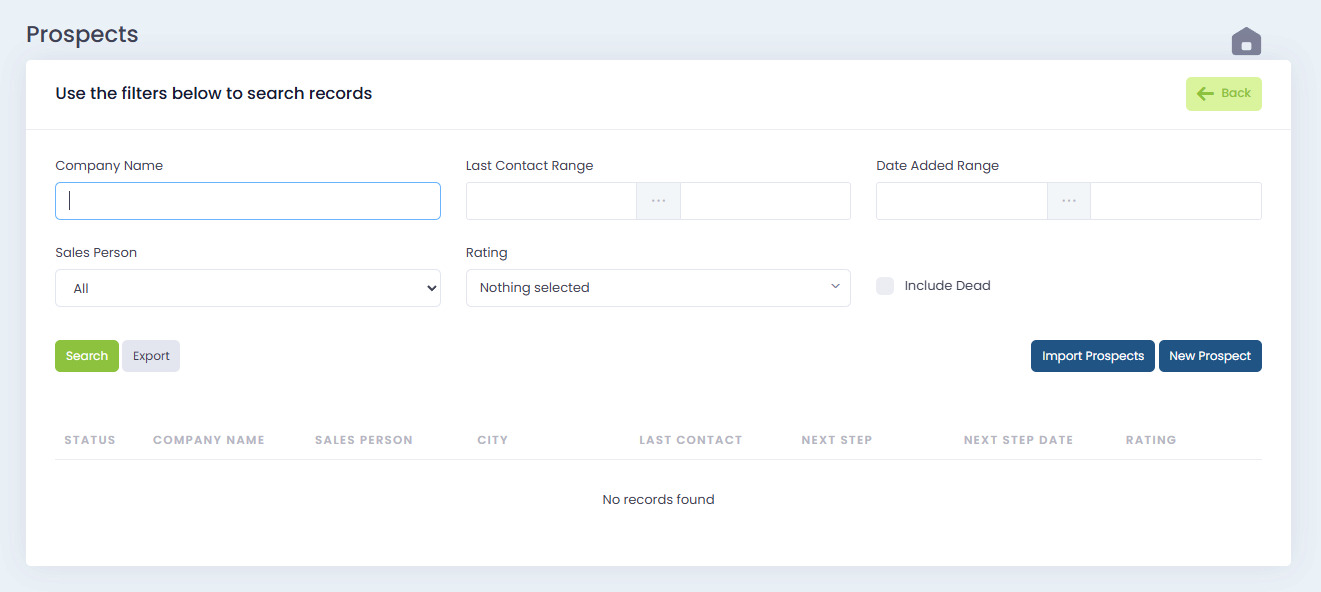
At the top of the Prospects page you’ll find search and filtering tools. These help you quickly isolate leads based on activity or status.
You can filter by:
- Company Name
- Last Contact Range
- Date Added Range
- Sales Person
- Rating
- Include Dead (shows prospects that are no longer viable)
Click Search to update the results or Export to download your current view.
Prospect Table Columns
Each prospect list includes:
- Status Icon
C = continuing prospecting - Company Name
- Sales Person
- City
- Last Contact Date
- Next Step
- Next Step Date
- Rating (stars)
This gives you a clear overview of your active workload.
Importing Prospects
Click Import Prospects to bulk upload new lead lists.
This is ideal for teams importing marketing lists, purchased leads, or existing databases.
You’ll see two options:
- Upload File – Upload your completed prospect import file
- Export Template – Downloads the blank CSV template containing all required fields
Prospect Import Template
The import template includes the fields required for a clean lead upload. The columns include:
- Company
- Address
- Address 2
- City
- State
- Zip
- Lead Source
- Office Phone
- Sales Person First Name
- Sales Person Last Name
- Contact First Name
- Contact Last Name
- Contact Role
- Contact Email
- Contact Office Number
- Contact Mobile
- Rating
This ensures prospects sync correctly into call schedules and assignment lists.
Creating or Editing a Prospect
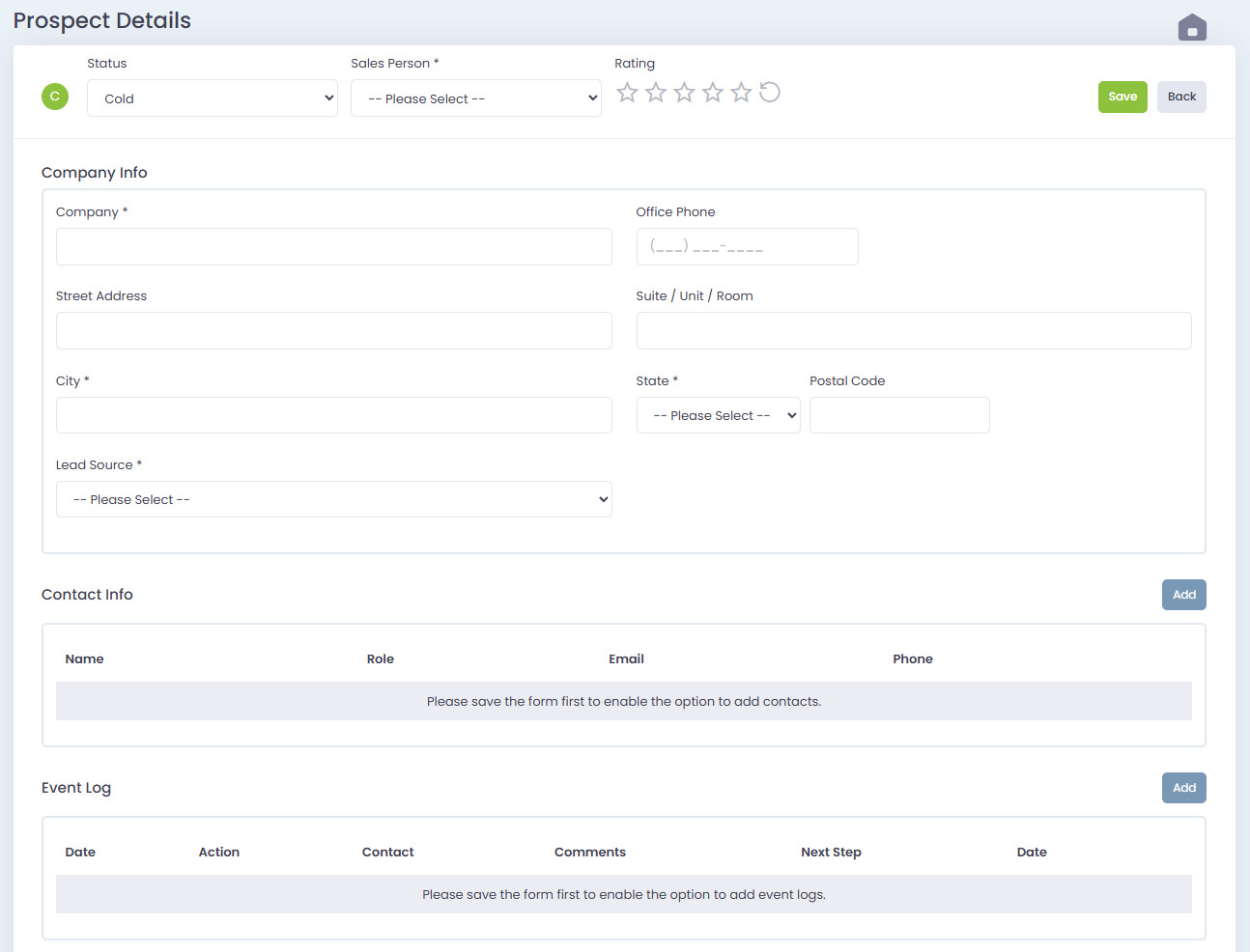
Click New Prospect or click an existing prospect name to open the Prospect Details page.
This page includes:
Top Section — Status, Sales Person, Rating
- Status (Cold Warm Hot or custom states)
- Sales Person (required)
- Rating (star rating 1–5 and reset icon)
Company Info
- Company Name
- Street Address
- Suite / Unit
- City
- State
- Postal Code
- Office Phone (with call button)
- Lead Source
Contact Info
You may add multiple contacts per prospect. Each contact has:
- Name
- Role
- Phone
Click Add to add more contacts.
Event Log
Use the Event Log to record every touchpoint:
- Date
- Action
- Contact
- Comments
- Next Step
- Next Step Date
This helps you stay consistent with follow-ups and track conversations.
Saving Your Prospect
Click Save to update or create the record. Once saved, the prospect will appear in:
- My Prospects
- Hustle
- Pipeline (once converted into an opportunity or quote)
Everything stays synced so your call list stays accurate.