
Creating a new quote in QwikSell is simple. The process starts by selecting or creating a customer, then entering the quote details, and finally adding your items. The system guides you through each step so you can build a professional quote fast.
Select or Create a Customer
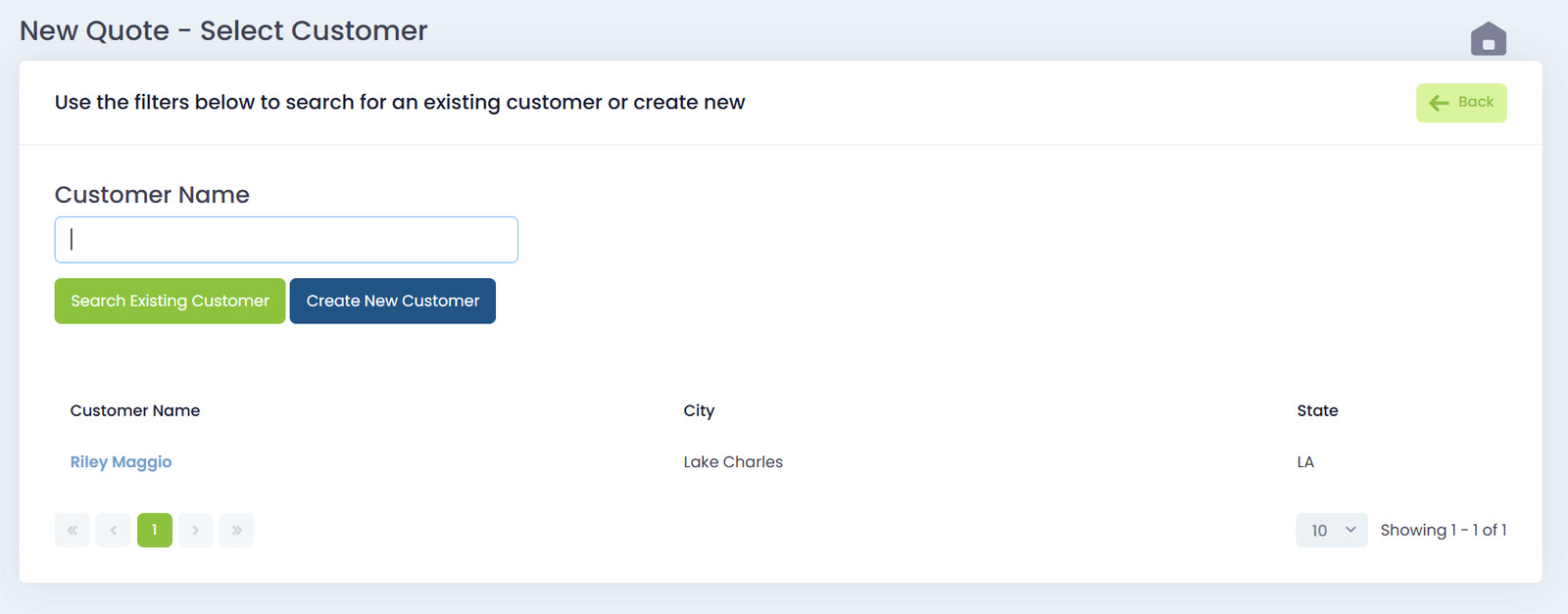
When you click New Quote from the left navigation, the first screen will ask you to choose a customer. You can:
- Search for an existing customer
- Create a new one
To search, type the customer’s name in the Customer Name field and click Search Existing Customer.
To create a brand-new customer, click Create New Customer.
Any matching customers will appear in the table below.
Customer Selected
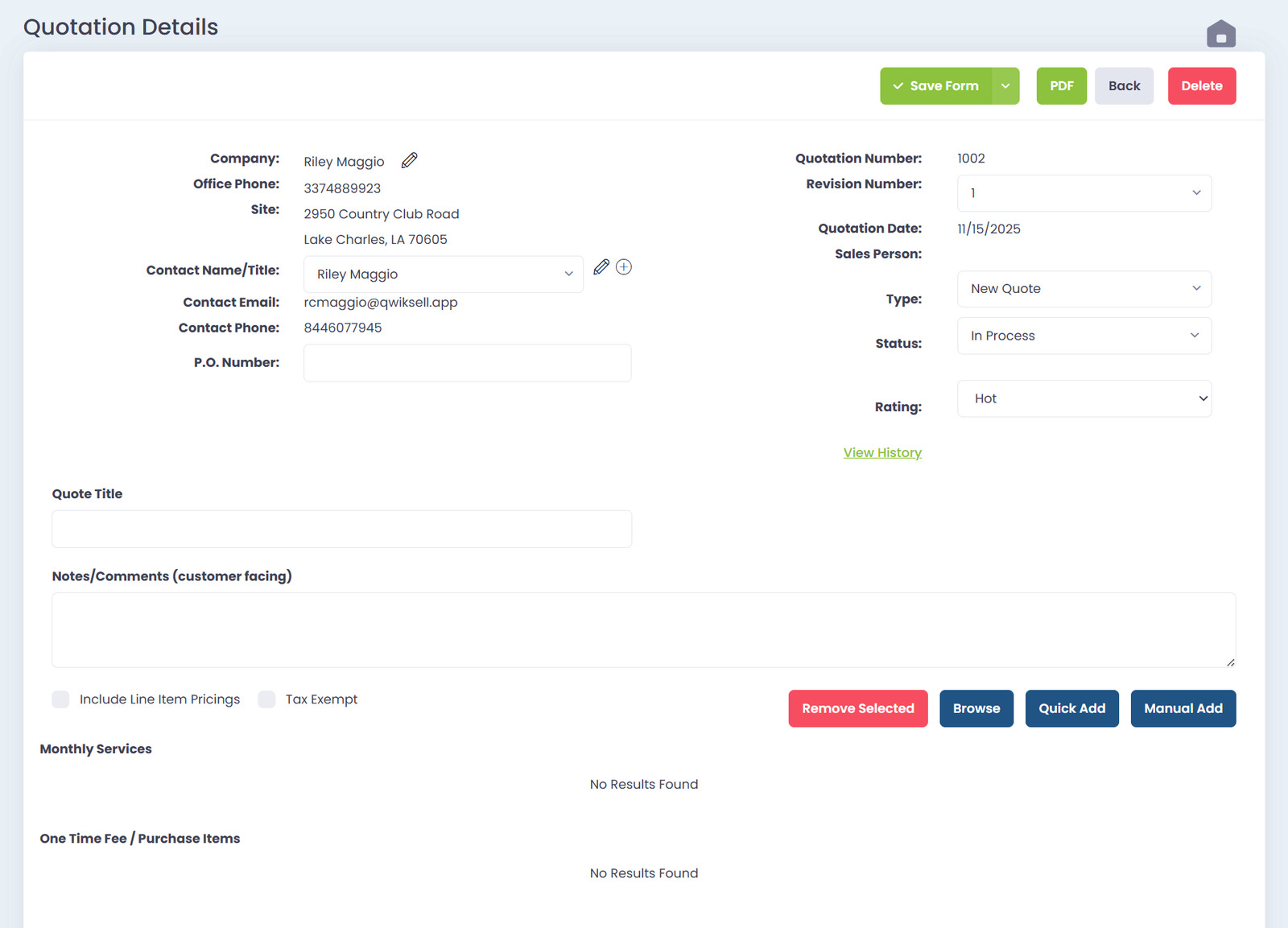
Once you select a customer from the list, QwikSell will open the Quote Details screen.
This is where you enter everything needed to build your quote:
Customer Information (auto-filled but editable)
- Company
- Office Phone
- Site Address
- Contact Name/Title
- Contact Email
- Contact Phone
- PO Number
Quote Information
- Quotation Number
- Revision Number
- Quotation Date
- Sales Person
- Type
- Status
- Rating
- View History
All fields can be adjusted as needed before you add items.
Enter Quote Title and Customer Notes
Next, fill out the customer-facing fields:
- Quote Title – The title your customer will see
- Notes/Comments – Any message or explanation you want included on the proposal
Options include:
- Include Line Item Pricings
- Tax Exempt
These affect how the final PDF will display.
Add Items
Below the notes area are your product sections:
Monthly Services
Shows any recurring items
One-Time Fee / Purchase Items
For hardware, labor, project fees, licensing, etc.
These sections start empty until you add items. You can add line items through three methods:
Browse
Opens your item catalog where you can pick from your company’s categories and subcategories.
Quick Add
Lets you add an item fast by typing the item name or code.
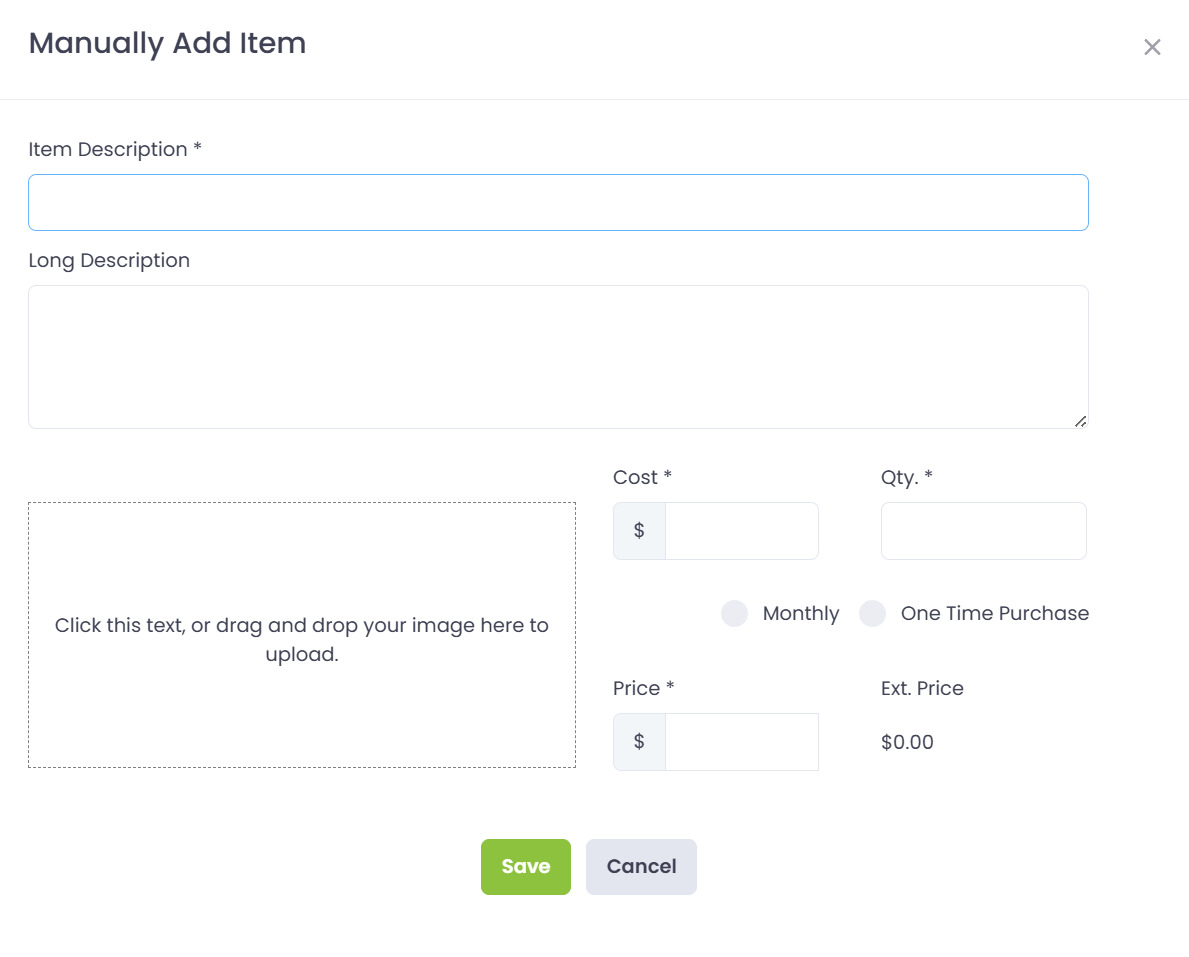
Manual Add
Creates a fully custom item from scratch, including description, price, cost, quantity, and image.
Save or Finalize the Quote
When the quote details and items are complete, you can finalize it using:
- Save Form – Saves your progress
- PDF – Generates a PDF to review or send manually
- Delete – Removes the quote entirely
- Back – Returns you to the customer search page
Once saved, you can come back later to email it, send for signature, or build a new version.