
Editing an Existing Quote
When you open a quote from the Existing Quotes page, you’ll land in the Quote Editor. This is where you adjust customer info, update pricing, add or remove items, check the quote status, and send the quote to your customer.
The layout is fast and simple so you can make edits without slowing down your workflow.
Top Action Bar
At the top of every quote you’ll see your main editing tools:
- New Version – Creates a new revision while keeping the old version saved
- Save As New – Creates an entirely new quote using the current one as a template
- Save – Updates the current version
- Sign Now – Sends the quote directly for customer signature
- Email – Opens options to send the quote or copy the approval link
- PDF – Generates a customer-facing PDF
Back – Returns to the previous page
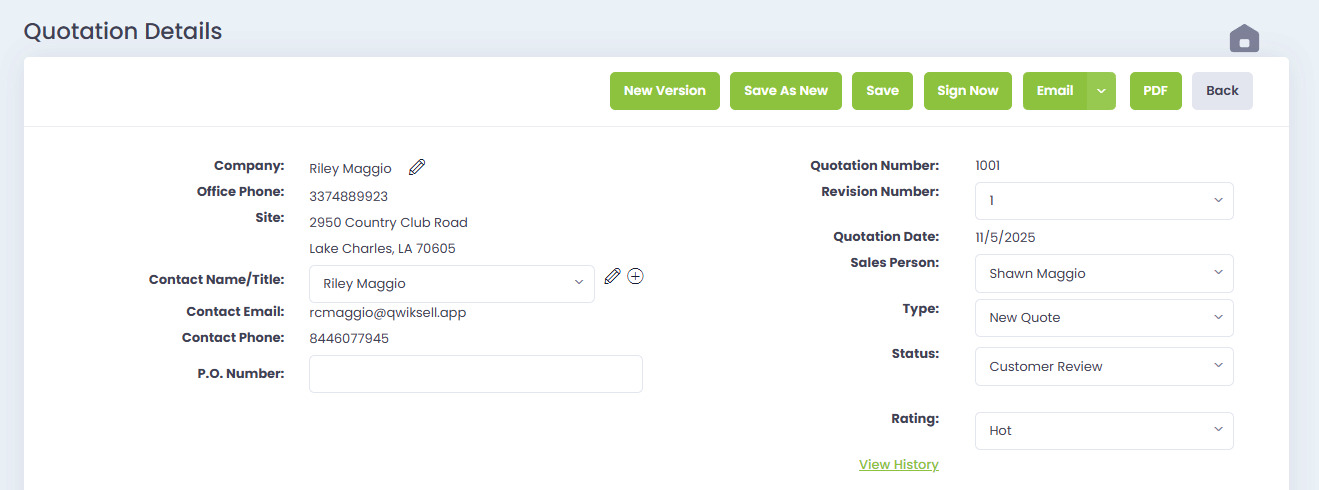
Customer and Quote Details
The top section contains all customer-facing information and internal quote details.
Left Side — Customer Info
- Company
- Office Phone
- Site Address
- Contact Name/Title
- Contact Email
- Contact Phone
- PO Number
All of these fields can be edited if needed.
Right Side — Quote Information
- Quotation Number
- Revision Number
- Quotation Date
- Sales Person
- Type
- Status
- Rating
- View History link (shows all activity and changes to the quote)
Quote Title and Customer Notes
Below the customer details are fields you can customize for the customer:
- Quote Title – The title your customer will see
- Notes/Comments (customer facing) – Any message you want included on the PDF
You also have two checkboxes:
- Include Line Item Pricings – Show each line price to the customer
- Tax Exempt – Removes tax from all items
Adding and Editing Items
QwikSell keeps items organized into two groups:
Monthly Services
Recurring items billed monthly (if none exist, “No Results Found” appears)
One-Time Fee / Purchase Items
Standard items purchased once (hardware, licensing, projects, labor, etc.)
You can manage line items using:
- Remove Selected – Deletes any checked items
- Browse – Opens your product catalog
- Quick Add – Adds an item by name or code instantly
- Manual Add – Lets you create a custom item from scratch
Manual Add Window
The Manual Add option allows you to build a custom item with:
- Item Description
- Long Description
- Image upload
- Cost
- Quantity
- Monthly or One-Time Purchase selection
- Price (auto-calculates extended price)
This tool is perfect for special project items or anything not in your product catalog.
Editing Existing Line Items
Each item shows:
- Description
- Qty
- Price
- Extended Price
- PDF visibility indicator (eye icon)
- Edit button
Click Edit on any item to adjust pricing or quantity.
Totals Section
At the bottom of the screen, QwikSell displays:
- Total Monthly Amount (if applicable)
- Total Purchase Amount
These update automatically when items are added, removed, or modified.
Saving and Sending
Once your changes are complete, choose one of the sending options:
- Email → Send to Client
Sends the quote directly to the customer - Email → Copy Approval Link
Copies your unique approval link - Sign Now
Sends immediately for e-signature - PDF
Creates the customer-facing proposal file
Everything updates instantly so you can move qwik and stay accurate.