
The Customers module lets you search for customers, review their information, update billing or site details, and create new quotes directly from the customer record. Everything is organized so your team can move fast and stay accurate.
Customer Search
When you open Customers from the left navigation, you’ll see the customer search screen. You can search by:
- Customer Name
- Billing City
- Status:
- Active
- Inactive
- All
After entering your filters, click Search to update the results or Export to download the list.
Customer Actions
Each customer in the list includes three action icons on the right:
1. Edit (pencil icon)
Opens the customer profile where you can update contact information, billing details, and site locations.
2. View Quotes (eye icon)
Shows all quotes created for that customer.
3. New Quote (plus icon)
Creates a new quote for the selected customer instantly.
These icons make it easy to take action without navigating to another screen.
Editing a Customer
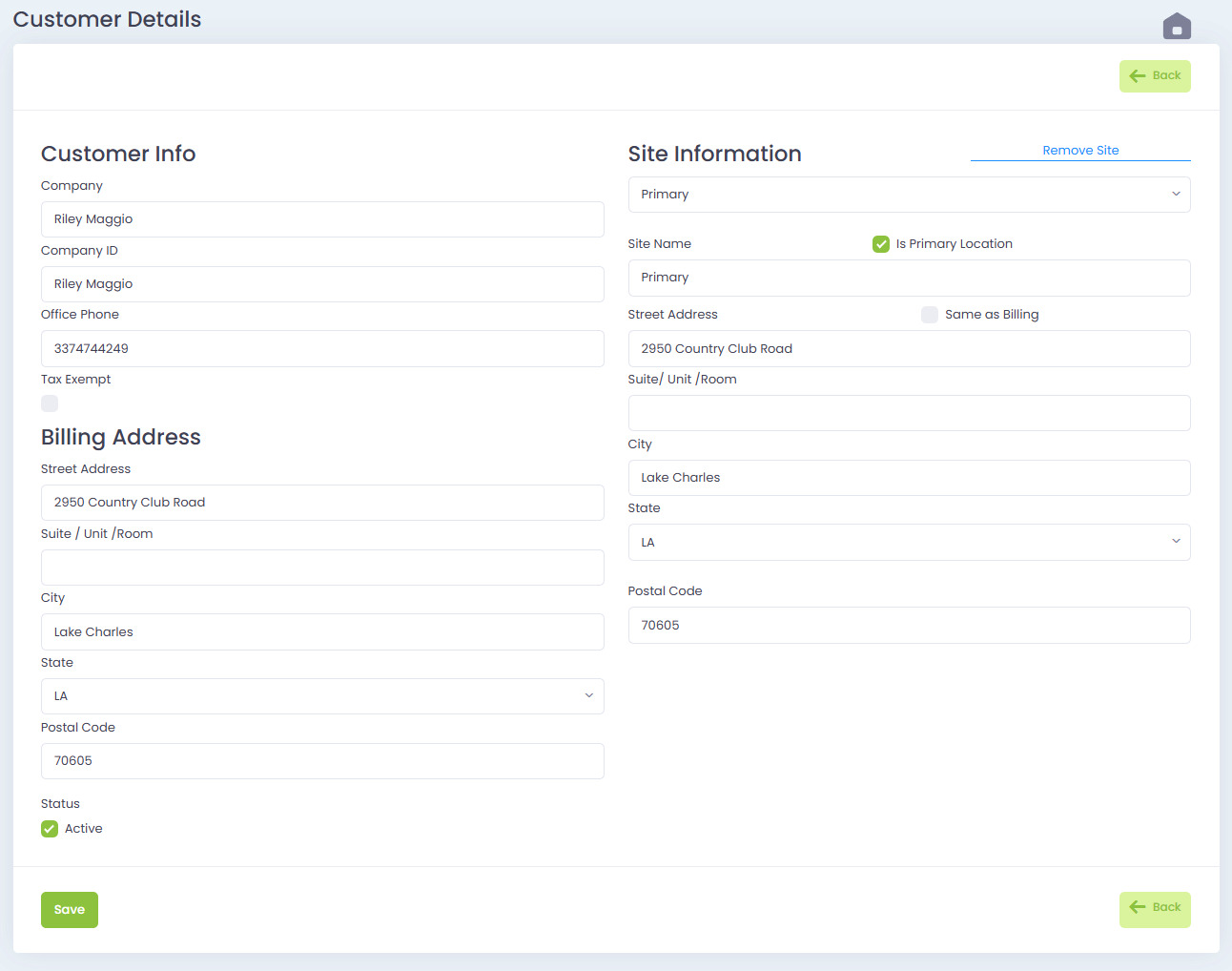
When you click the Edit icon, you’ll open the Customer Info page. This page includes everything needed to maintain accurate records.
Customer Info Section
- Company
- Company ID
- Office Phone
- Tax Exempt toggle
- Status (active/inactive)
Billing Address
- Street Address
- Suite / Unit / Room
- City
- State
- Postal Code
Site Information
Every customer can have one or more service locations. The site section includes:
- Site Name
- Is Primary Location
- Street Address
- Same as Billing toggle
- City
- State
- Postal Code
- Remove Site option (when applicable)
You can manage multiple sites, update addresses, and set the primary location used for quotes.
After making changes, click Save.
Creating a New Customer
Click the Create New Customer button from the main customer list to open a blank Customer Info form. Enter the required fields and click Save.
New customers will immediately appear in the list and can be used when building quotes.
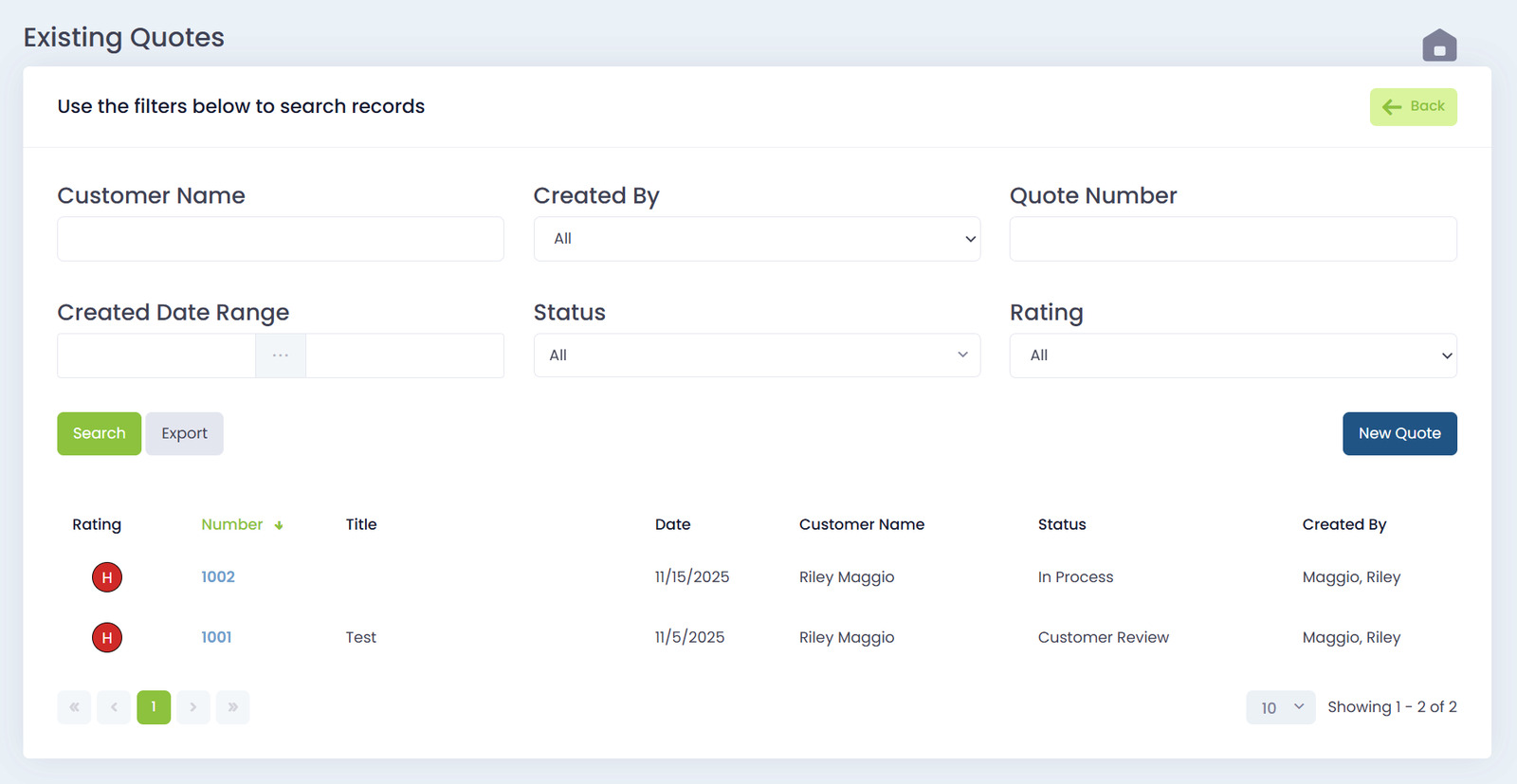
Viewing Customer Quotes
Click the View Quotes (eye icon) next to a customer to display all quotes associated with that customer. This helps with follow-ups, renewals, version tracking, and identifying open opportunities.
Starting a Quote From the Customer Page
Click the New Quote (plus icon) to jump straight into a new quote using that customer’s information. This keeps the quoting process fast and reduces duplicate entry.